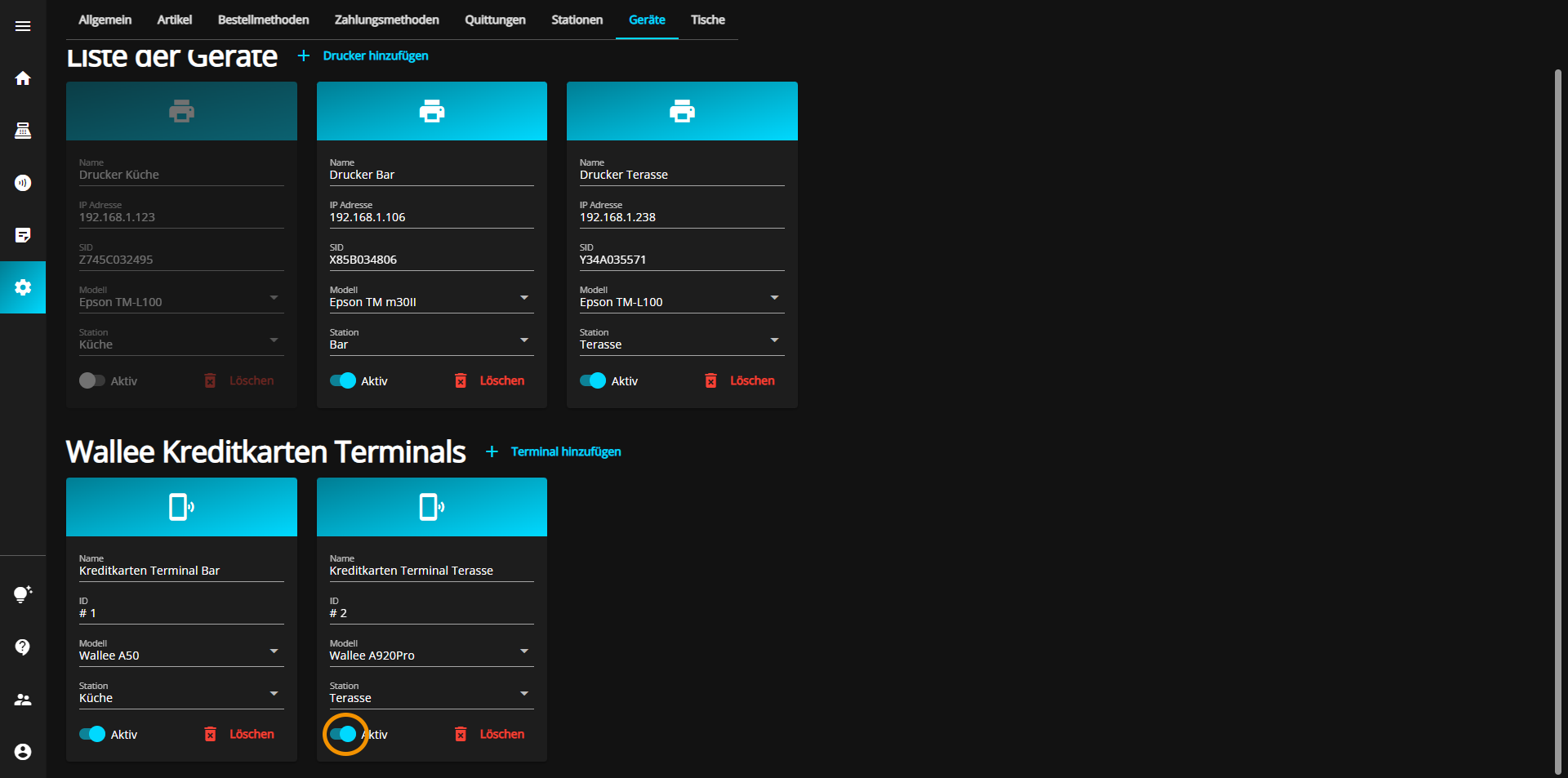
To add a new printer, click on the "Add printer" button.
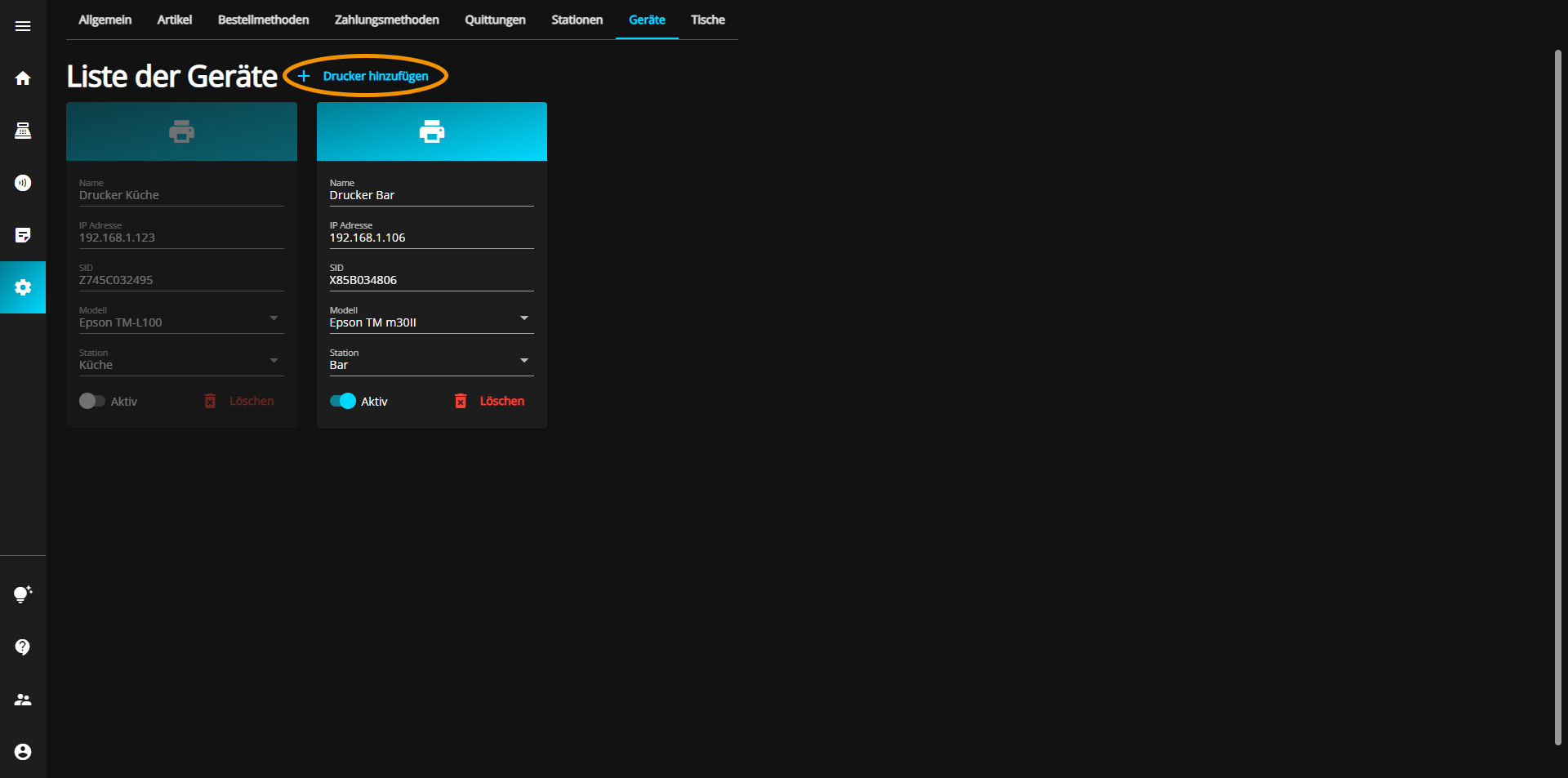
First, you can give the new printer a suitable name by clicking in the "Name" text field and entering the desired name.
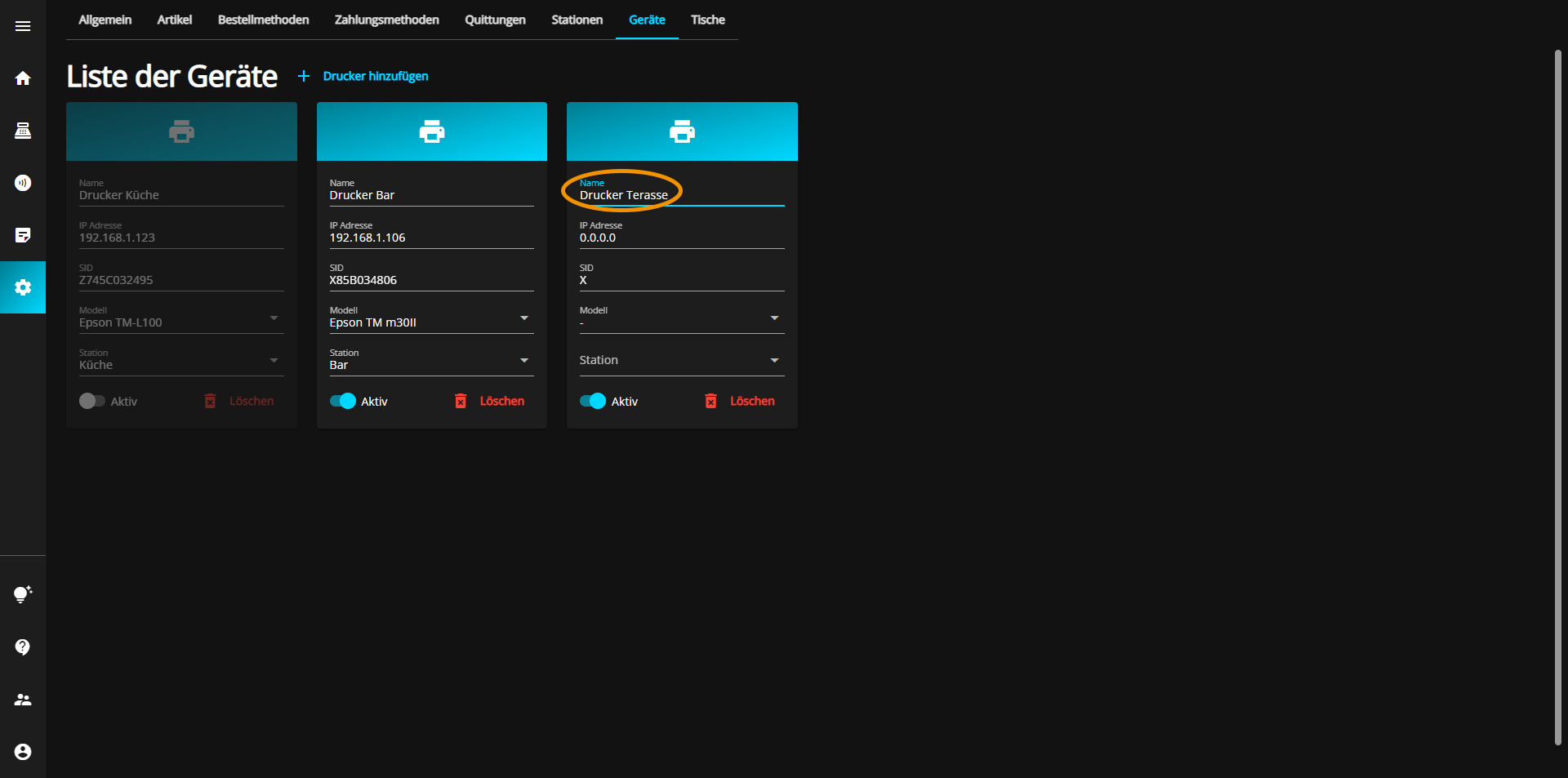
Next, you must enter a correct IP address through which you can communicate with the printer.
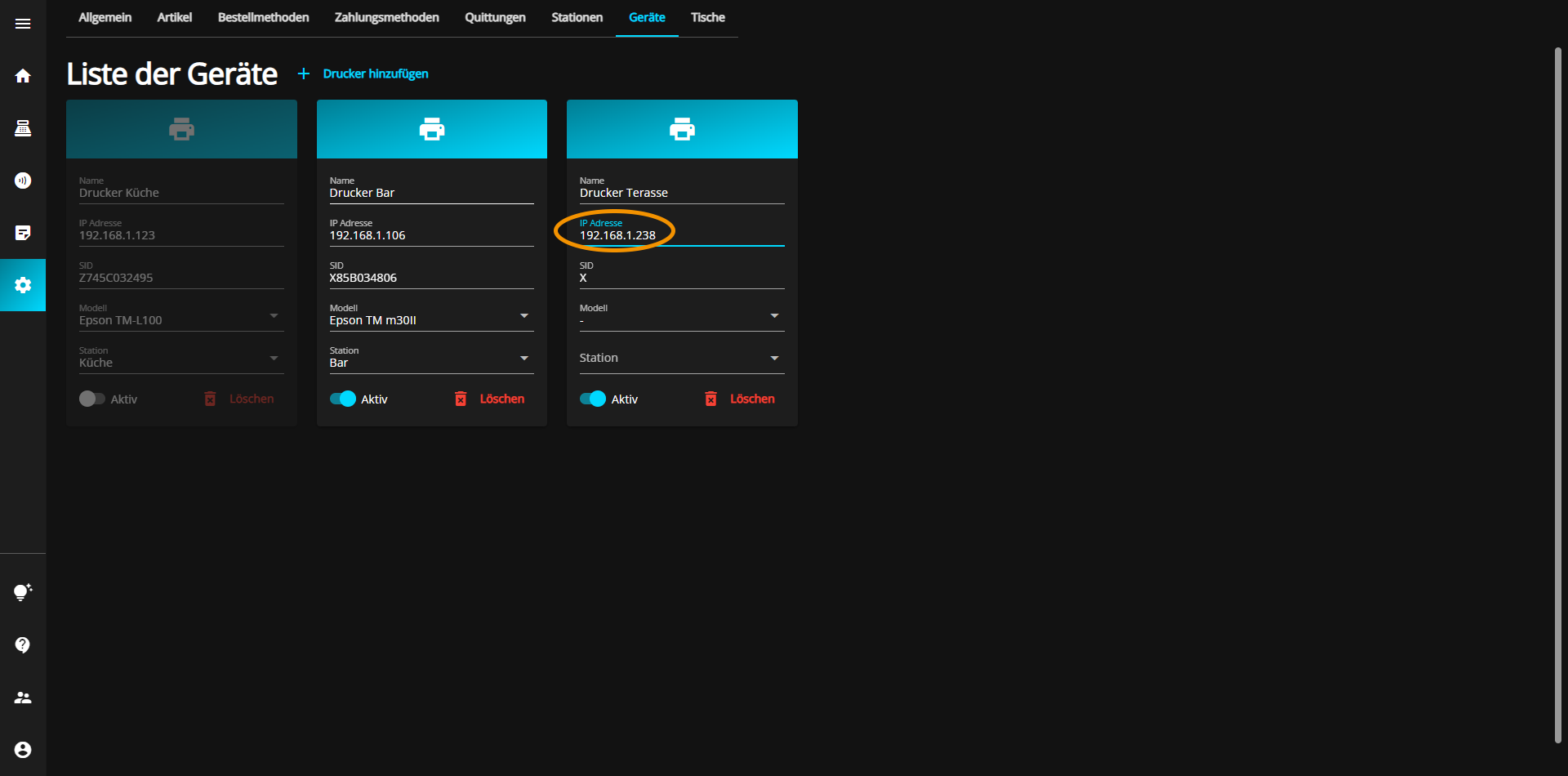
You can then enter the SID, which is listed for each printer.
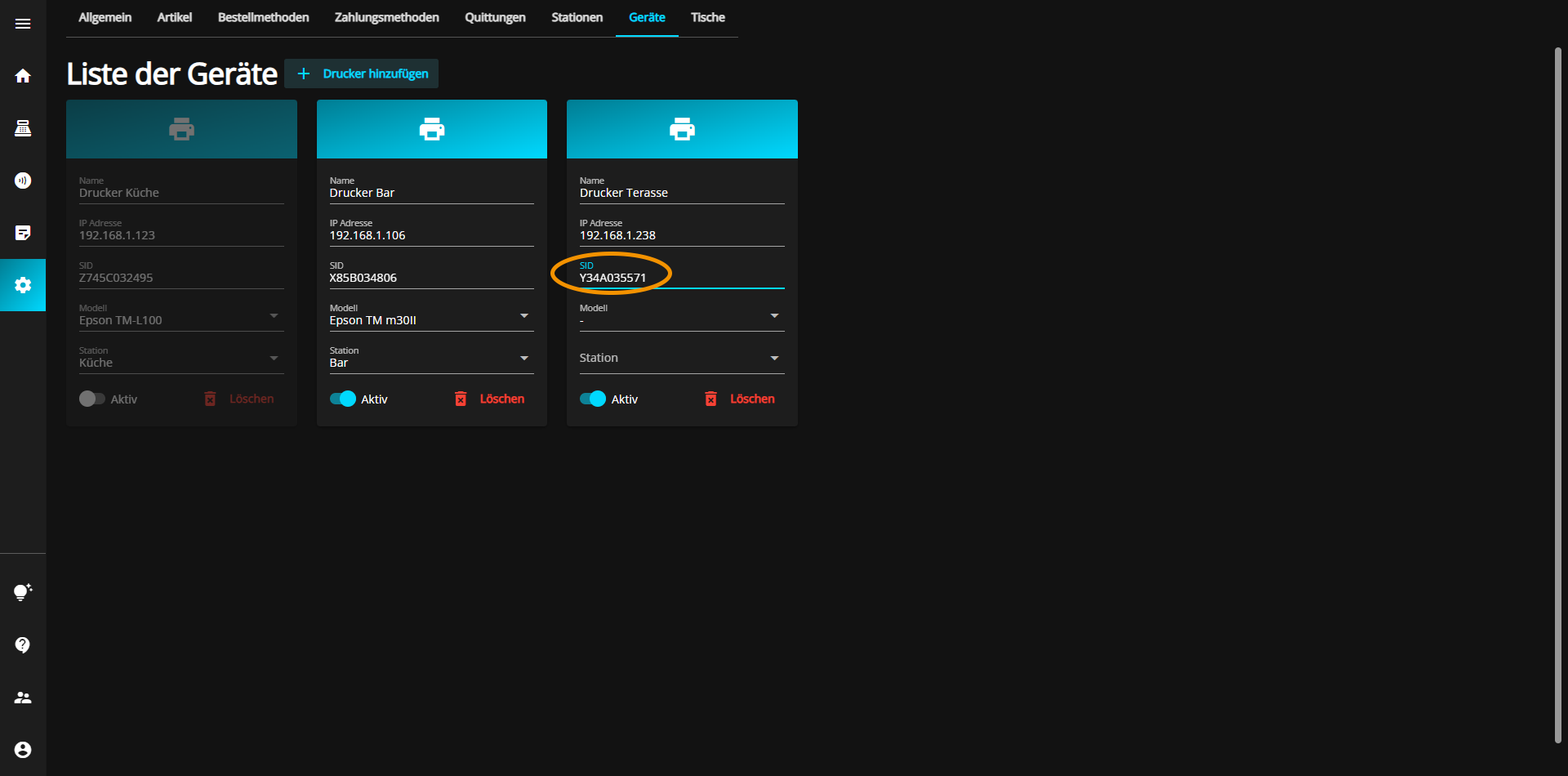
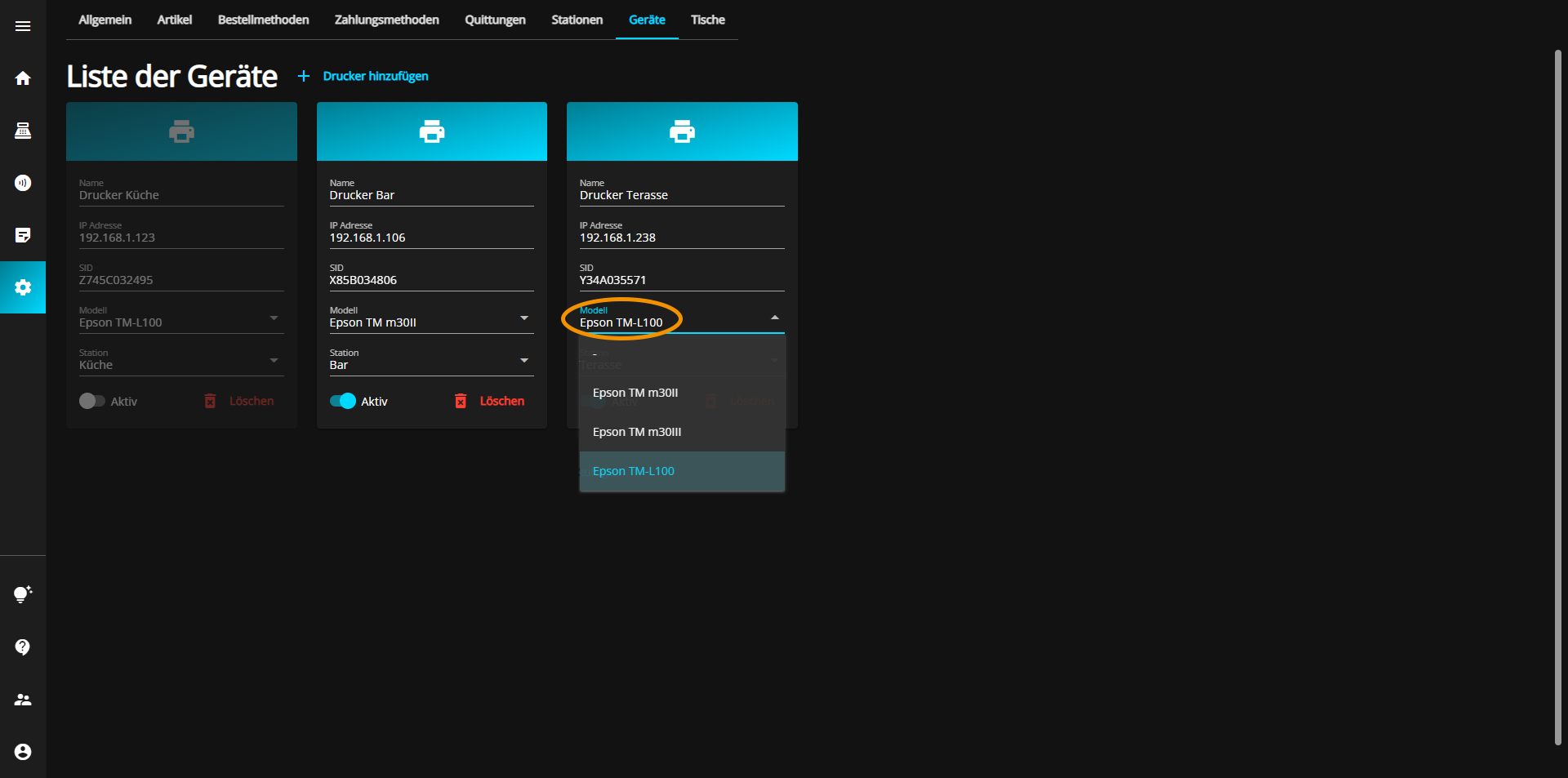
You can also select the exact model of the printer.
Finally, the printer is assigned to the desired station.
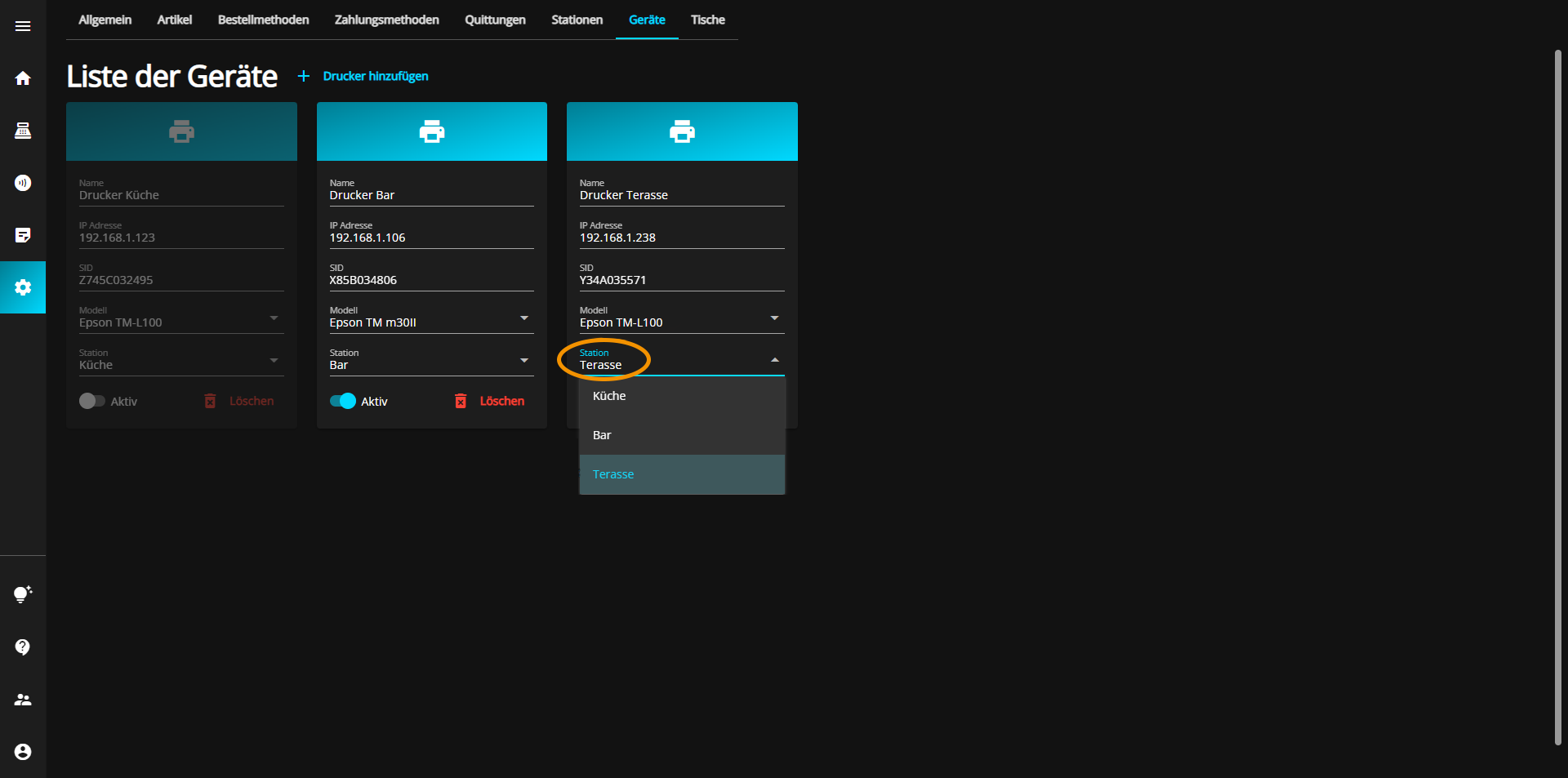
This step naturally requires that at least one station has already been created in the Stations tab.
If you have not yet completed this step, continue in the "Stations" tab or click on the following link
simplyorder.ch/dashboard/settings/stations
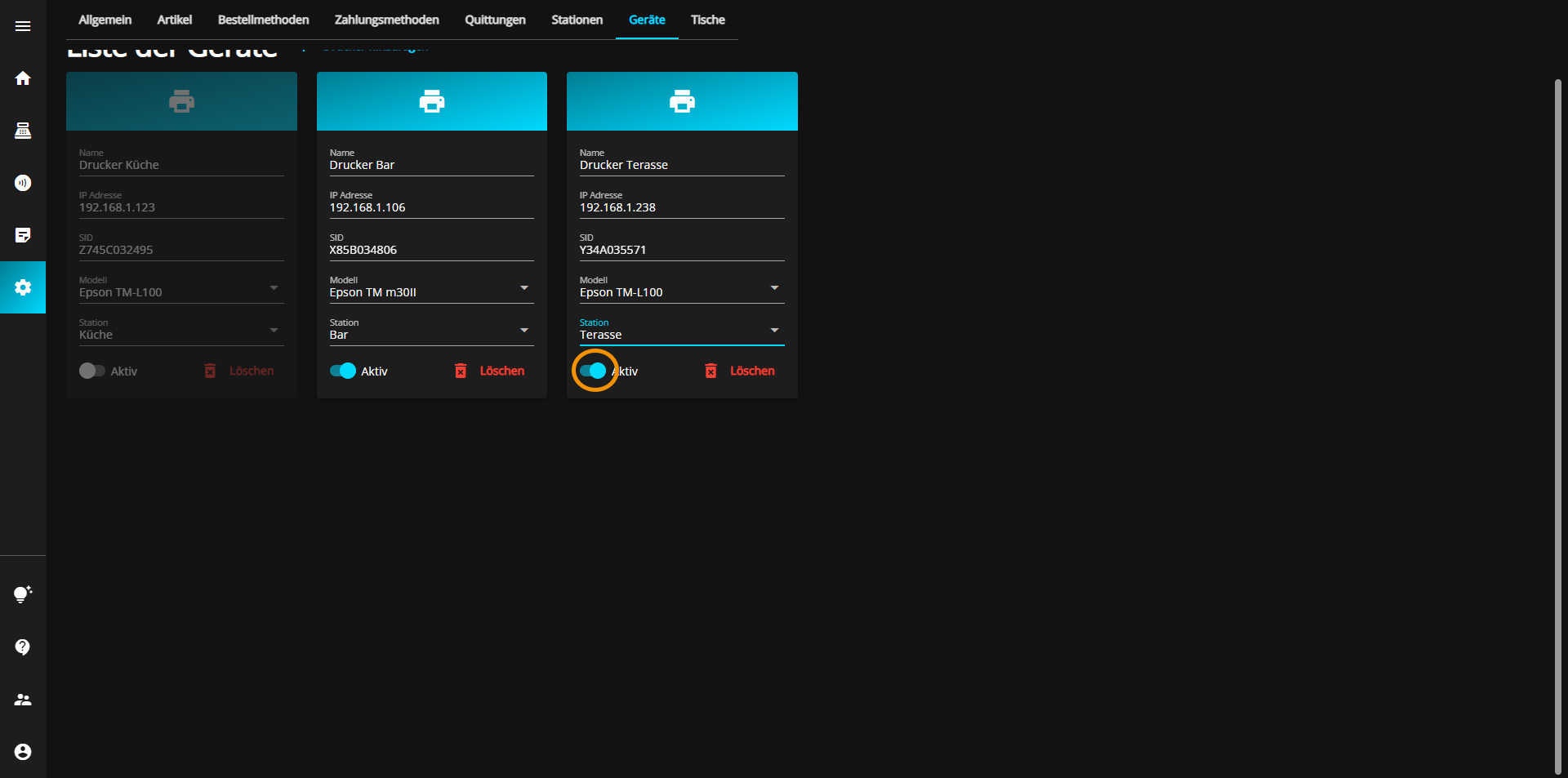
You have the option of activating (blue) or deactivating (gray) each printer at any time by toggling the "Active" button at the bottom left of the device tab.
To add a new credit card terminal, click on the "Add terminal" button.
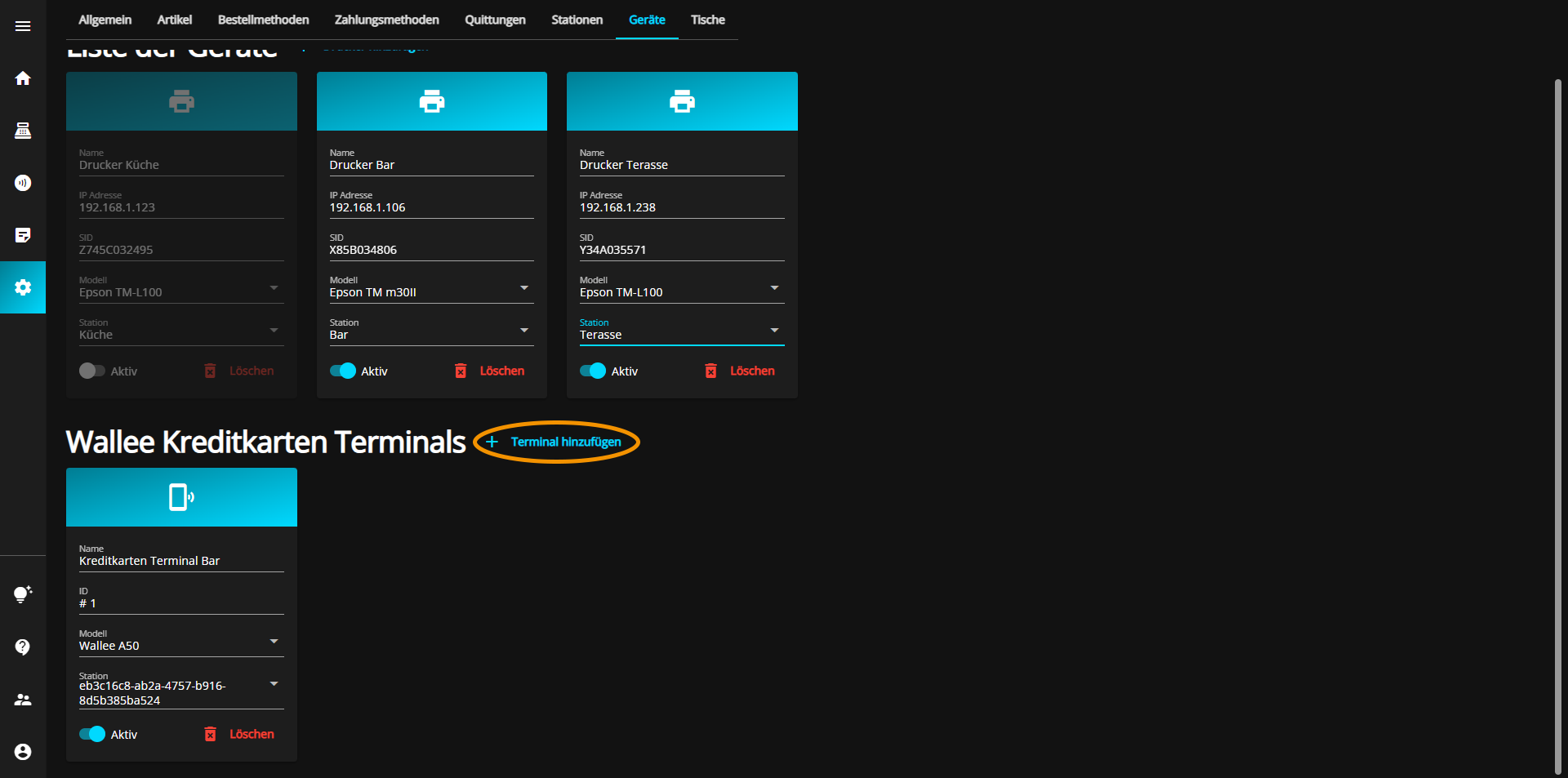
First you can give the new terminal a suitable name by clicking in the "Name" text field and entering the desired name.
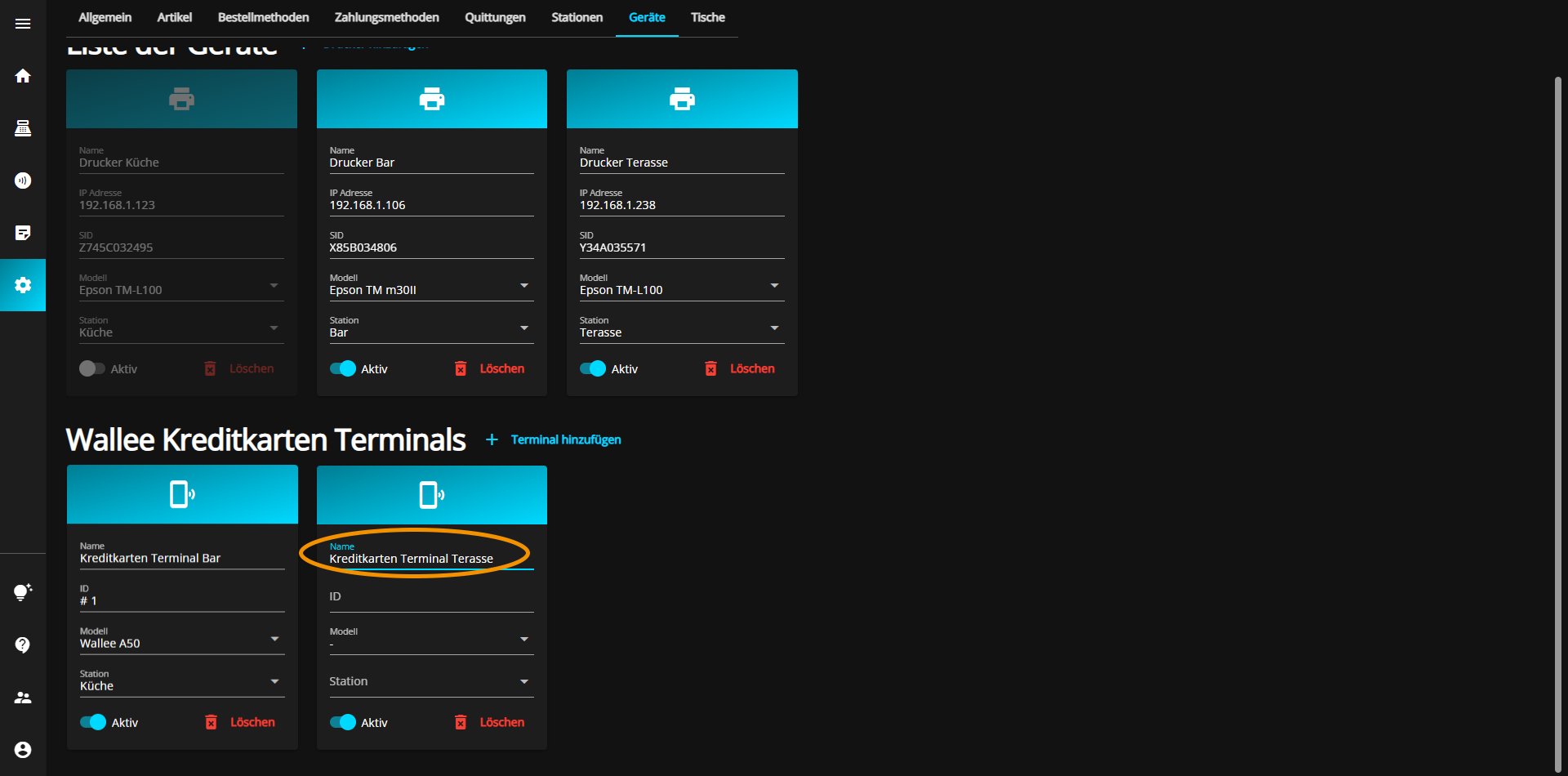
The ID is then entered, which ensures that the terminals can be distinguished.
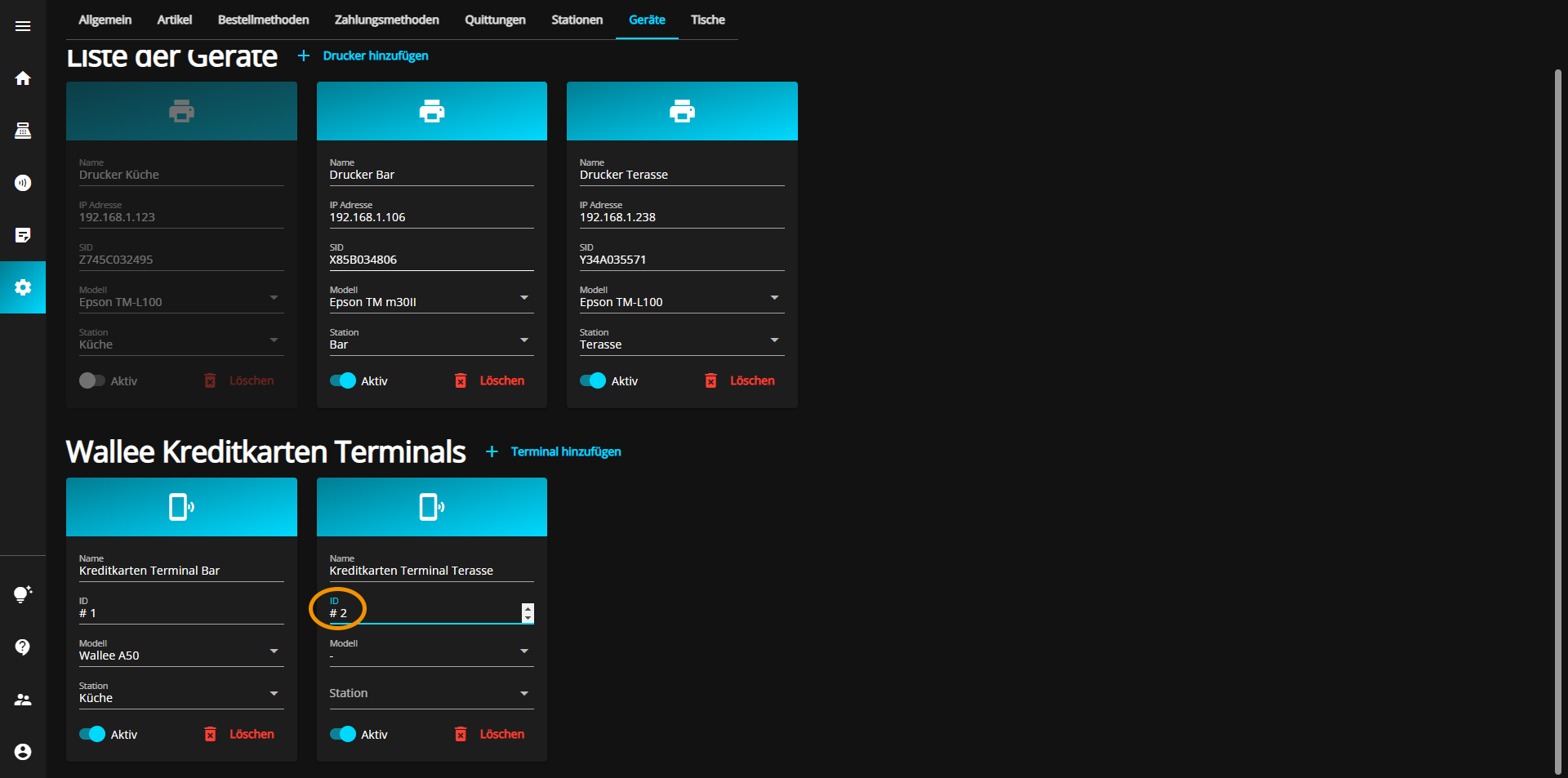
Next, you can select the model of the existing credit card terminal.
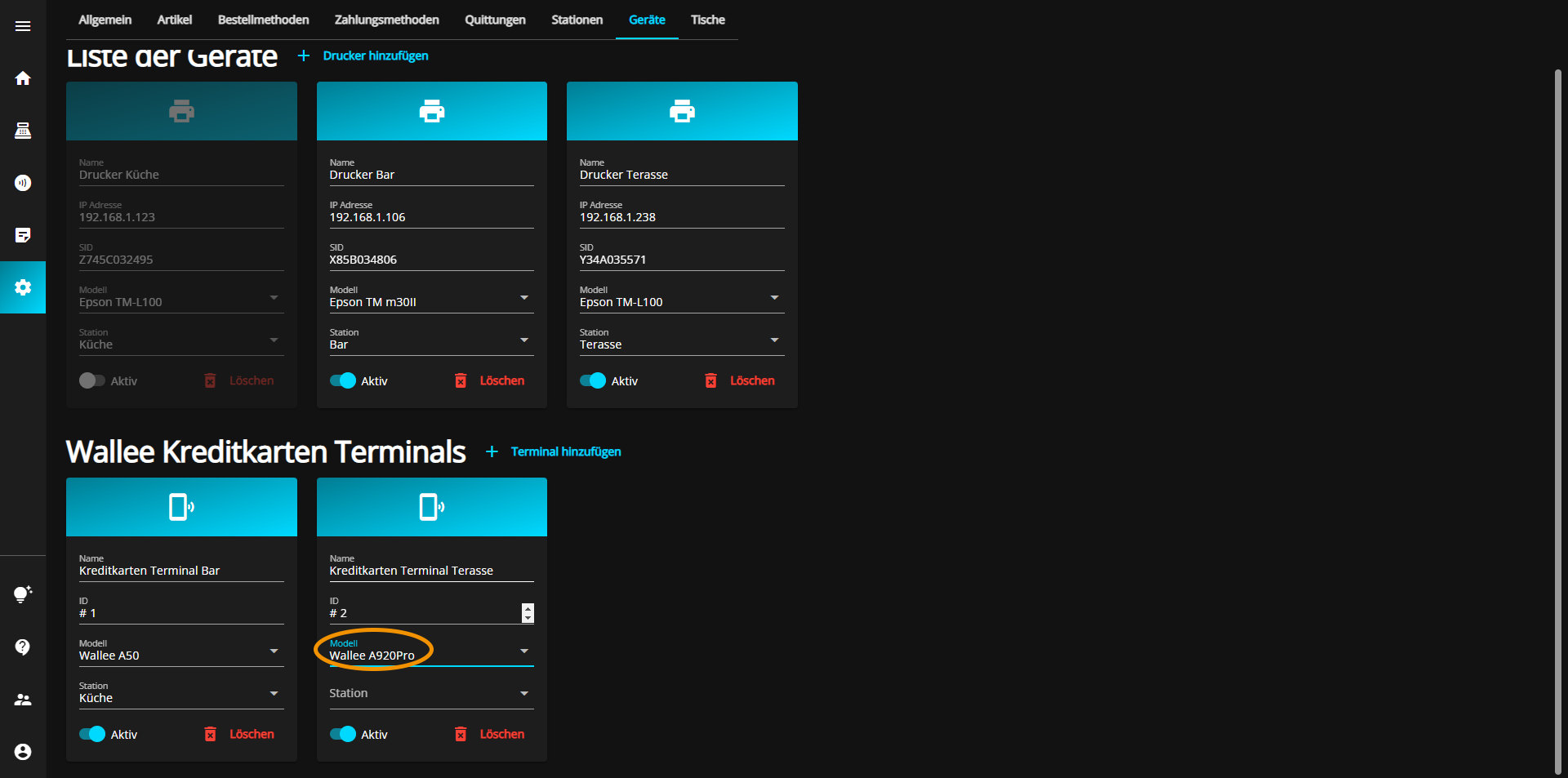
Finally, the terminal must be added to an available station.
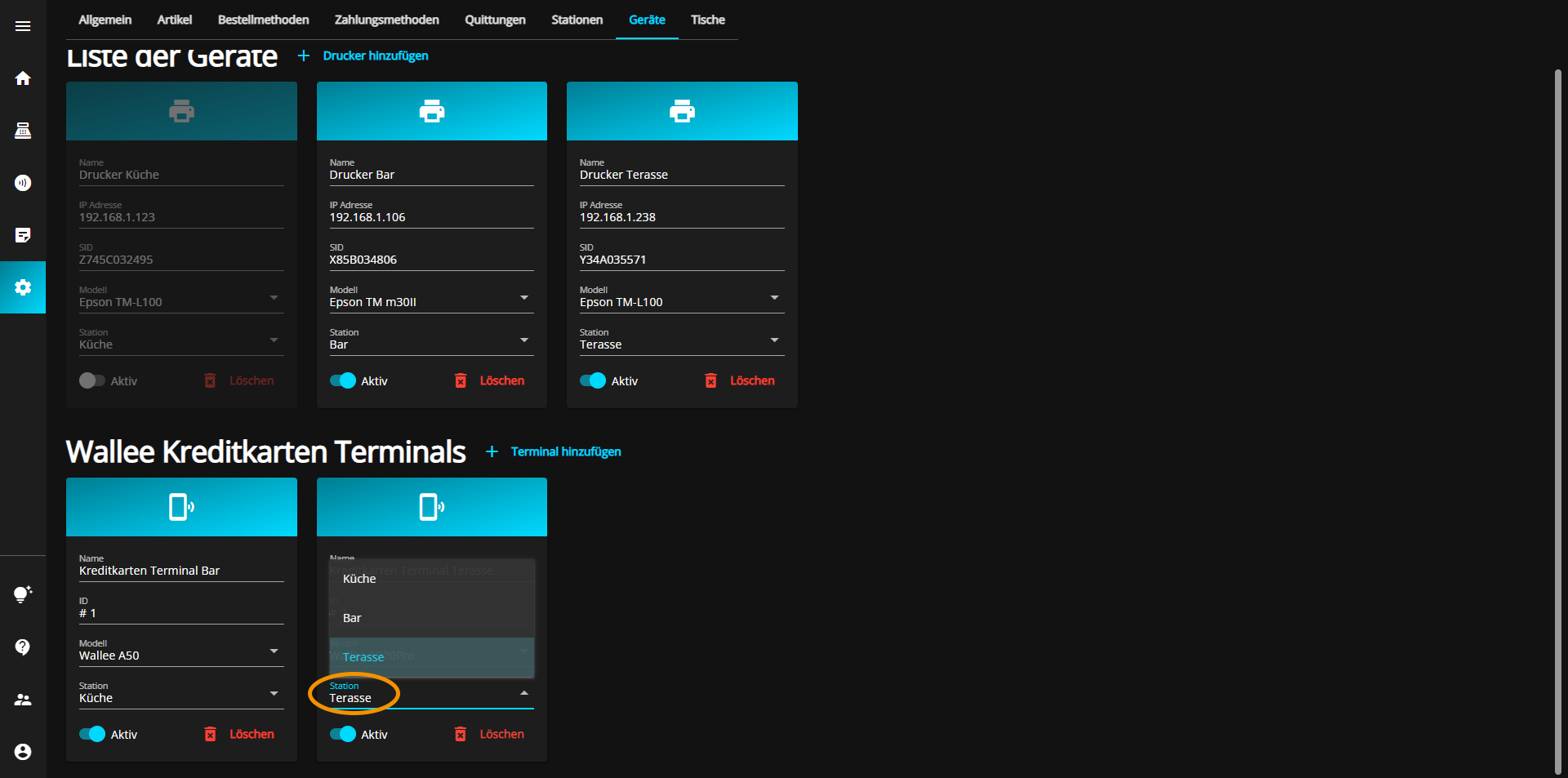
This step naturally requires that at least one station has already been created in the Stations tab.
If you have not yet completed this step, continue in the "Stations" tab or click on the following link
You have the option of activating (blue) or deactivating (gray) each terminal at any time by toggling the "Active" button at the bottom left of the device tab.